Installing vCenter Server 8 (VCSA) and Clustering 3 ESXi Hosts
🧩 Problem#
I wanted to bring my 3 separate ESXi hosts (running on local storage, no shared storage/NAS) under centralized management by deploying vCenter Server Appliance (VCSA) 8.0.3, then clustering all 3 hosts together.
Along the way, I hit a persistent firstboot failure that took significant troubleshooting to root-cause:
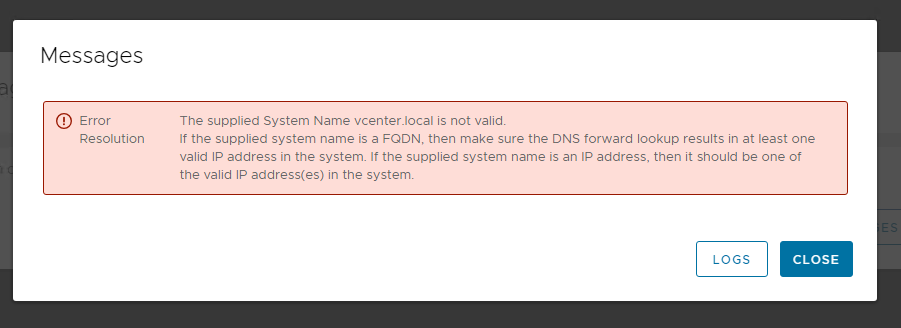
Error

The supplied System Name <hostname> is not valid.


Resolution

If the supplied system name is a FQDN, then make sure the DNS forward lookup

results in at least one valid IP address in the system. If the supplied

system name is an IP address, then it should be one of the valid IP

address(es) in the system.
This happened with both vcenter.local and vcenter.lab as the FQDN, despite DNS appearing to be configured correctly.
🛠️ Solution Overview#
Deployed VCSA 8.0.3 using the IP address as the PNID (leaving the FQDN field blank during Stage 1), sidestepping a deep systemd-resolved hostname synthesis issue in Photon OS. After a successful deploy, clustered all 3 ESXi hosts under one vCenter, enabled DRS and HA, and set up remote access via Cloudflare Tunnel with Cloudflare Access authentication.
🔧 Environment#
-
3x ESXi 8.0.3 hosts on separate physical hardware (local storage only, no shared NAS/SAN)
-
VMware-VCSA-all-8.0.3-24322831.iso(full installer) -
AdGuard Home as local DNS resolver
-
vSphere 8 Enterprise Plus licensing
-
Windows management PC for running the VCSA installer UI
🔍 Step 1: Decide Hardware Placement for VCSA#
With 3 hosts of varying RAM (32GB / 16GB / 64GB), VCSA was deployed on the host with the most headroom (64GB RAM) to avoid resource contention with existing VMs.
For a Tiny deployment (up to 10 hosts / 100 VMs):
| Deployment Size | vCPU | RAM | Inventory Size |
|—————–|——|——-|————————-|
| Tiny | 2 | 14 GB | Up to 10 hosts / 100 VMs |
For 3 hosts total, Tiny is the correct tier.
🌐 Step 2: DNS Planning#
Initial plan was to set up a DNS rewrite in AdGuard Home for the FQDN, pointing to a static IP for the VCSA appliance, plus a PTR record for reverse DNS.
Key lesson: AdGuard Home’s DNS rewrites are forward-only — they don’t auto-generate PTR records. For a single-vCenter homelab, missing reverse DNS is cosmetic (a warning during pre-checks) and not a hard blocker.
💿 Step 3: Deploy VCSA — Stage 1 (OVA Deployment)#
-
Mounted
VMware-VCSA-all-8.0.3-24322831.isoon a Windows management PC -
Ran
vcsa-ui-installer\win32\installer.exe→ Install -
Pointed the deployment target at the chosen ESXi host directly
-
Selected deployment size: Tiny, thin-provisioned disk
-
Configured static networking (IP, gateway, DNS server)
-
Left the FQDN field blank — this makes the static IP the appliance’s PNID
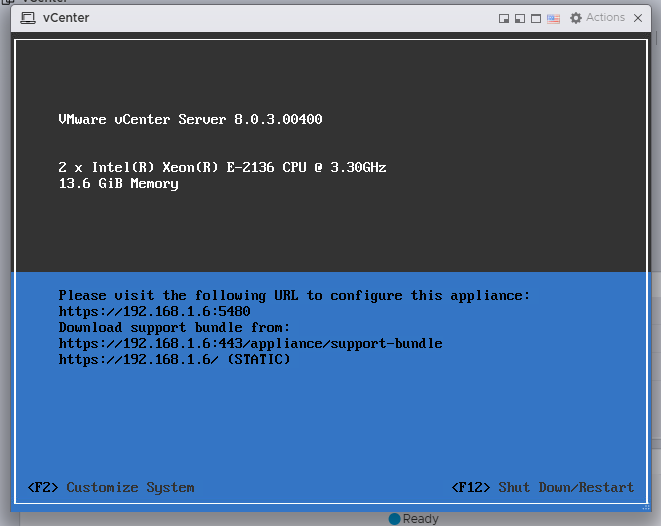
Stage 1 completed successfully and deployed the appliance VM.
!
⚠️ Step 4: Stage 2 Failure — Root Cause Analysis#
Clicking Continue into Stage 2 triggers firstboot (~51 services). The very first script, visl-support-firstboot.py, failed after ~30 minutes with the PNID validation error.
!
SSH’d into the appliance to dig into logs:
ssh root@<vcsa-ip>

shell

cat /var/log/firstboot/visl-support-firstboot.py_<PID>_stderr.log
This revealed Forward lookup of <FQDN> returned empty result. Testing DNS directly:
nslookup <FQDN>                   # fails — queries 127.0.0.1 first

nslookup <FQDN> <dns-server-ip>   # succeeds
Checking the actual resolution path:
resolvectl query <FQDN>
The query resolved to 127.0.0.1 / ::1 in microseconds — far too fast to be a real network round-trip. That pointed to a local synthetic answer.
Checking the NSS resolution order:
cat /etc/nsswitch.conf
hosts: files resolve dns
Root cause: resolve (systemd-resolved’s NSS module) synthesizes a loopback answer for the system’s own hostname and sits before dns in the chain — so real upstream DNS (AdGuard Home) was never consulted for the appliance’s own FQDN. The firstboot script’s forward-lookup validation hit the loopback answer and failed every time.
✅ Step 5: The Fix (and the Workaround That Actually Worked)#
Attempted fix — removing resolve from the NSS chain:
cp /etc/nsswitch.conf /etc/nsswitch.conf.bak

sed -i 's/hosts: files resolve dns/hosts: files dns/' /etc/nsswitch.conf
Verified with getent (which follows the same NSS chain as Python’s getaddrinfo()):
getent hosts <FQDN>

# Correctly returned the real LAN IP
Caveat: certain firstboot scripts can regenerate /etc/resolv.conf mid-run, reverting parts of the fix. After multiple failed attempts, the most reliable solution was simply leaving the FQDN field blank during Stage 1 and using the static IP as the PNID — no DNS validation involved at all.
🏗️ Step 6: Create Datacenter and Cluster#
-
Right-click vCenter → New Datacenter
-
Right-click Datacenter → New Cluster
- vSphere DRS: left off initially (enabled after hosts added)
- vSphere HA: left off initially (same reason)
- vSAN: off (no shared storage in this environment)
- vLCM image-based management: left unchecked (adds complexity not needed for first pass across 3 different hardware models)
➕ Step 7: Add ESXi Hosts to the Cluster#
For each of the 3 hosts:
-
Right-click Cluster → Add Hosts
-
Enter host IP and root credentials
-
Review host summary (existing VMs, networks, datastores)
-
Assign license
-
Finish
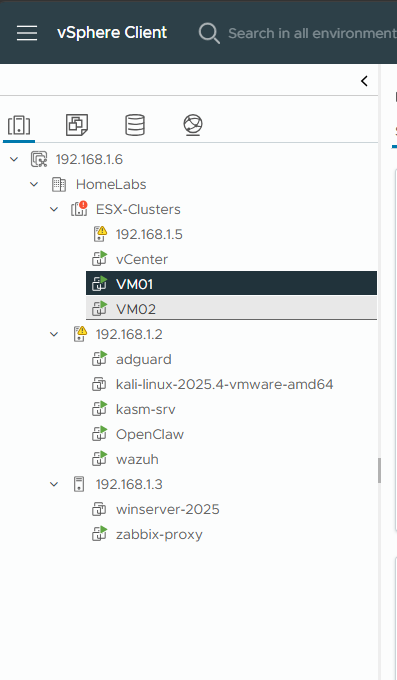
All powered-on VMs continued running uninterrupted throughout — adding a host to a cluster doesn’t touch existing workloads.
!
🔑 Step 8: Licensing#
-
Administration → Licensing → Licenses → Add → enter license key(s)
-
Assets → vCenter Server systems → assign license to the vCenter instance
-
Assets → Hosts → select all 3 hosts → Assign License → vSphere 8 Enterprise Plus
🔄 Step 9: Enable DRS and HA#
Once all hosts were licensed and healthy:
-
Cluster → Configure → Services → vSphere DRS → Edit → toggle On (Fully Automated)
-
Cluster → Configure → Services → vSphere Availability → Edit → toggle On
Note on local-storage-only environments: HA’s ability to restart VMs on a different host is limited — a VM’s disk only exists on its original host’s local datastore, so if that host goes down, HA can’t relocate it. vMotion between hosts is still possible with Enterprise Plus licensing but requires copying the full VM disk over the network.
🌐 Step 10: Remote Access via Cloudflare Tunnel#
Set up remote access using Cloudflare Tunnel with Cloudflare Access authentication in front of vCenter’s own SSO login.
Install and configure cloudflared on a small VM on the same LAN as vCenter:
curl -L https://pkg.cloudflare.com/cloudflare-main.gpg | sudo gpg --yes --dearmor --output /usr/share/keyrings/cloudflare-main.gpg

echo 'deb [signed-by=/usr/share/keyrings/cloudflare-main.gpg] https://pkg.cloudflare.com/cloudflared $(lsb_release -cs) main' | sudo tee /etc/apt/sources.list.d/cloudflared.list

sudo apt-get update && sudo apt-get install cloudflared


cloudflared tunnel login

cloudflared tunnel create vcenter-tunnel
~/.cloudflared/config.yml:
tunnel: vcenter-tunnel

credentials-file: /root/.cloudflared/<tunnel-id>.json


ingress:

  - hostname: <your-public-fqdn>

    service: https://<vcenter-ip>:443

    originRequest:

      noTLSVerify: true   # cert is issued for the IP, not the tunnel hostname

  - service: http_status:404
cloudflared tunnel route dns vcenter-tunnel <your-public-fqdn>

cloudflared tunnel run vcenter-tunnel


# once confirmed working:

sudo cloudflared service install

sudo systemctl enable --now cloudflared
In the Cloudflare Zero Trust dashboard, add an Access application in front of the tunnel hostname with a policy restricted to specific identities — this adds an authentication challenge before anyone reaches vCenter’s own SSO prompt.
🔒 Step 11: Fix SSO Rejected Hostname#
Accessing vCenter via the tunnel hostname returned:
[400] An error occurred while sending an authentication request to the vCenter Single

Sign-On server - the service provider validation failed.
vCenter’s SSO only trusts the hostname matching its configured PNID by default. Any additional hostname (tunnel, reverse proxy, load balancer) must be explicitly whitelisted.
SSH into vCenter and edit the alias whitelist:
ssh root@<vcenter-ip>

shell

service-control --stop vsphere-ui


cd /etc/vmware/vsphere-ui

cp webclient.properties webclient.properties.bak

vi webclient.properties
Uncomment and set:
sso.serviceprovider.alias.whitelist=<your-public-fqdn>
Restart the service:
service-control --start vsphere-ui
After this, logging in via the tunnel hostname succeeded.
📊 Result#
-
vCenter Server 8.0.3 deployed and stable
-
All 3 ESXi hosts centrally managed under one cluster
-
DRS and HA enabled (with local-storage caveats noted above)
-
Existing VMs across all hosts untouched and running throughout
-
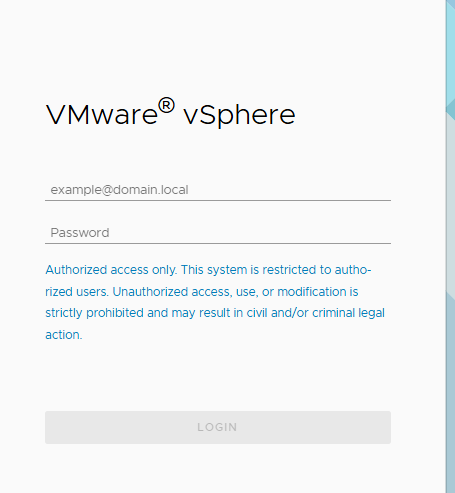
Remote access available via Cloudflare Tunnel, gated behind Cloudflare Access and vCenter SSO
! #
#
⚠️ Challenges Faced#
-
Misleading error message that looked like a simple DNS typo but was actually a deep OS-level NSS/systemd-resolved behavior
-
Two full ~30-minute failed deployment cycles before root-causing the issue
-
Discovering that
/etc/hosts’s loopback entry for the appliance’s own hostname is intended VMware behavior — the real issue was one layer deeper, in NSS resolution order -
Firstboot failures aren’t designed to be resumed or patched in place — redeployment was ultimately necessary
-
SSO rejecting the Cloudflare Tunnel hostname until explicitly whitelisted
🧠 What I Learned#
-
resolvein/etc/nsswitch.conf’shosts:line synthesizes loopback answers for the system’s own hostname, silently defeating DNS-based validation checks -
/etc/resolv.confon Photon OS is a dynamically generated symlink — manual edits don’t survive service restarts -
For a single-vCenter homelab, deploying with an IP-based PNID (leaving FQDN blank) is a fully supported shortcut that avoids the entire DNS synthesis problem
-
AdGuard Home’s DNS rewrites are forward-only — proper reverse DNS requires a full authoritative DNS server
-
vCenter SSO only trusts its configured PNID hostname by default — any additional access hostname must be whitelisted in
webclient.properties
🚀 Future Improvements#
-
Revisit FQDN-based PNID now that the root cause is understood
-
Add shared storage (NFS box) to unlock real HA failover and faster vMotion
-
Explore vLCM image-based lifecycle management once the cluster is stable
-
Set up proper reverse DNS via a full authoritative DNS server for a clean forward+reverse setup
-
Tighten Cloudflare Access policy further (e.g. add a second identity factor) given vCenter’s sensitivity as a management plane