Installing ESXi 8 on Dell OptiPlex (Fixing Pink Screen of Death - CPU Mismatch)
🧩 Problem#
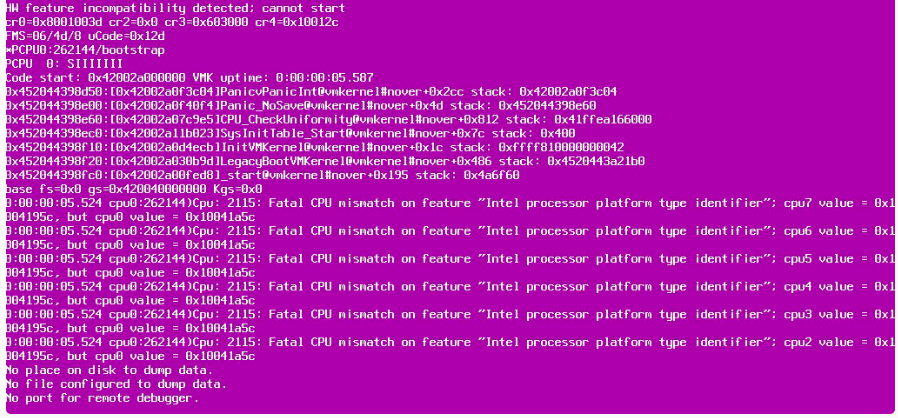
I attempted to install ESXi 8 on my Dell OptiPlex homelab machine, but during boot, I encountered a Pink Screen of Death (PSOD) with errors like:
- Fatal CPU mismatch on feature
- HW feature incompatibility detected
This prevented ESXi from installing or booting successfully.
!
🛠️ Root Cause#
The issue is caused by modern Intel CPUs (12th Gen and newer) using a hybrid architecture with:
- Performance cores (P-cores)
- Efficiency cores (E-cores)
ESXi expects uniform CPU cores, so it crashes when it detects different core types.
🛠️ Solution Overview#
I applied a workaround by disabling ESXi’s CPU uniformity check using a kernel boot parameter:
cpuUniformityHardCheckPanic=FALSE
This allowed ESXi to install and run successfully. Thanks and Credits due to : https://williamlam.com/2023/01/video-of-esxi-install-workaround-for-fatal-cpu-mismatch-on-feature-for-intel-12th-gen-cpus-and-newer.html
🔧 Environment#
- Dell OptiPlex (Intel CPU with hybrid cores)
- ESXi 8 ISO
- Bootable USB installer
🚀 Step 1: Boot ESXi Installer#
- Created bootable USB with ESXi 8
- Booted the OptiPlex from USB
⚠️ Step 2: Fix PSOD During Installation#
When the ESXi installer starts:
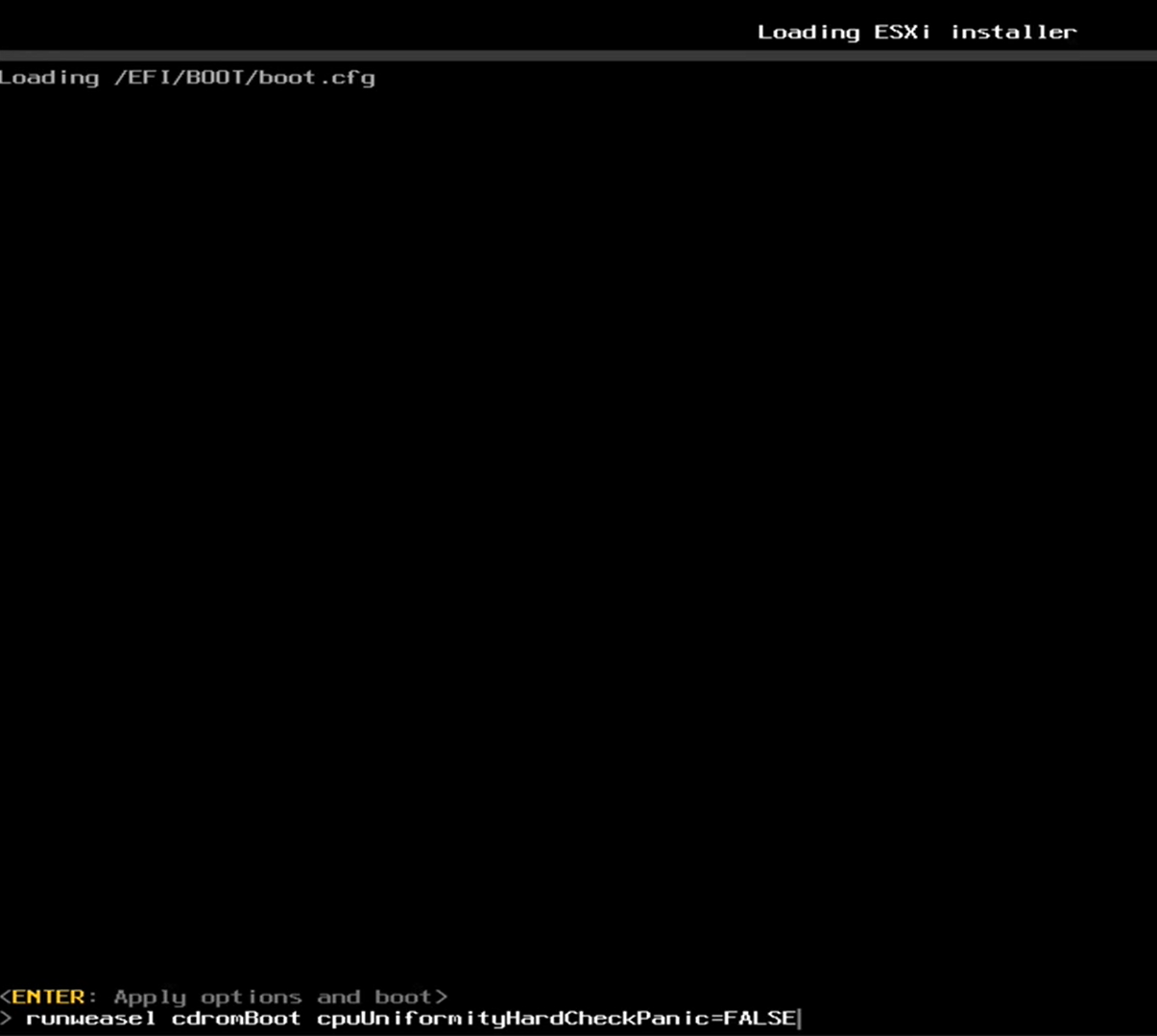
- Press:
SHIFT + O
- Append the following to the boot line:
cpuUniformityHardCheckPanic=FALSE
- Press Enter to continue boot
This bypasses the CPU compatibility check.
!
💿 Step 3: Install ESXi Normally#
- Follow the standard ESXi installation wizard
- Select disk
- Set root password
⚠️ Important: Do NOT reboot immediately after installation
🛠️ Step 4: Make Fix Persistent (Before Reboot)#
Press:
ALT + F1
Login:
Username: root
Password: (blank)
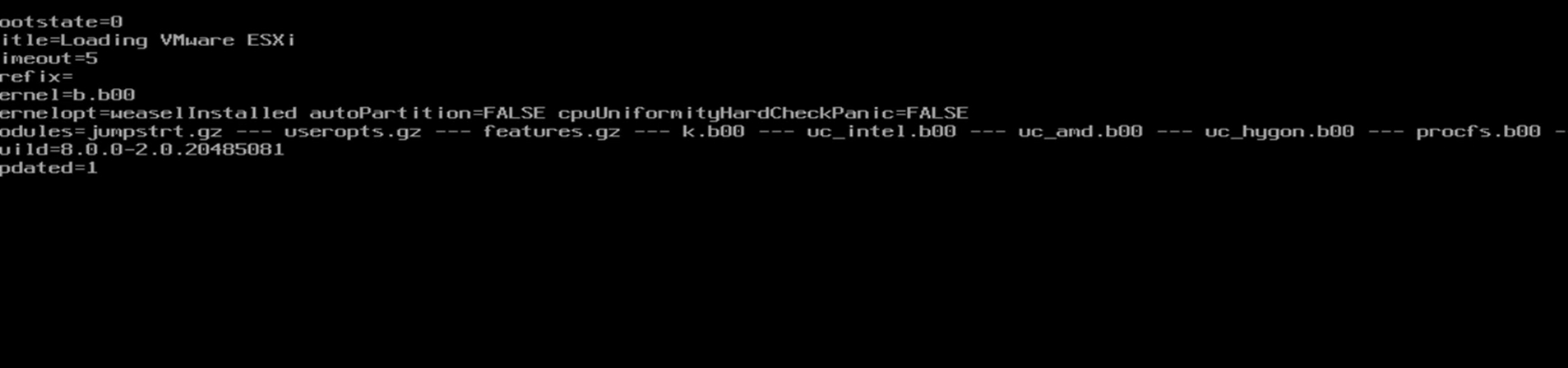
Edit boot config:
vi /vmfs/volumes/BOOTBANK1/boot.cfg
Update the kernel line:
kernelopt=weaselInstalled autoPartition=FALSE cpuUniformityHardCheckPanic=FALSE
Save and exit:
ESC → :wq
!
🔄 Step 5: Reboot System#
Press:
ALT + F2
Then reboot the system.
⚙️ Step 6: Make Setting Permanent (After Install)#
Enable ESXi shell:
- Press F2
- Go to Troubleshooting Options
- Enable ESXi Shell
Then:
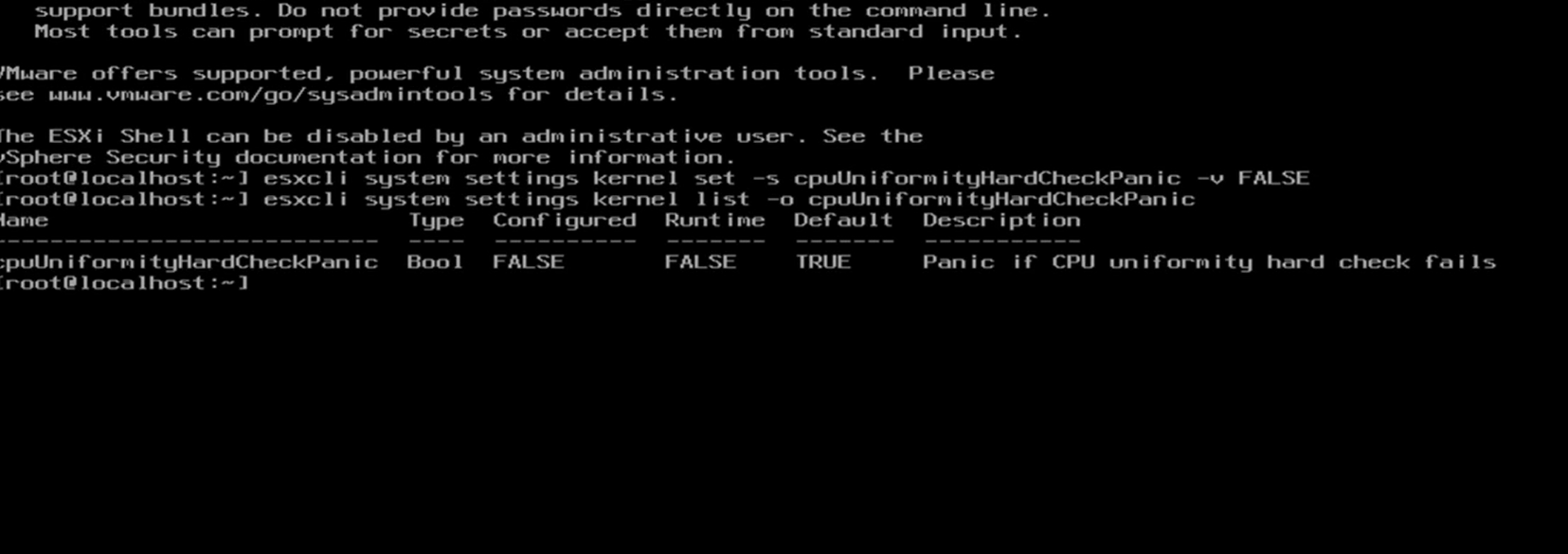
ALT + F1
Run:
esxcli system settings kernel set -s cpuUniformityHardCheckPanic -v FALSE
!
! !
!
(Optional) Step 7: Prevent Future PSOD (Newer CPUs)#
For newer CPUs (e.g., 13th Gen), also run:
esxcli system settings kernel set -s ignoreMsrFaults -v TRUE
📊 Result#
- ESXi 8 installed successfully
- No more PSOD during boot
- Stable homelab hypervisor running
⚠️ Challenges Faced#
- Repeated PSOD during installation
- Not knowing boot parameter initially
- Kernel setting not persisting after reboot
🧠 What I Learned#
- Modern CPUs use hybrid core architecture
- ESXi has strict CPU uniformity checks
- Kernel parameters can override hardware limitations
🚀 Future Improvements#
- Disable E-cores in BIOS for cleaner setup
- Upgrade to supported hardware
- Explore vCenter integration
🔥 Key Takeaway#
If you see a PSOD during ESXi install on newer Intel CPUs, it is most likely due to hybrid cores—and can be fixed using:
cpuUniformityHardCheckPanic=FALSE